
WhatsApp Message Templates: 2026 Rules, Categories & High-Converting Examples
On the official WhatsApp Business Platform (Cloud API), businesses cannot send arbitrary cold texts. Every business-initiated notification, broadcast, or alert sent outside the 24-hour customer window must use a pre-approved message template.
Understanding Meta's category definitions (Marketing vs Utility vs Authentication) is vital: it directly controls your template approval rate, message categorization, and your account's delivery quality score.
The 4 Meta Template Categories Explained
Meta splits all WhatsApp API templates into four distinct categories. Each serves a specific use case and set of messaging rules:
1. Marketing Templates
PromotionalAny message that promotes products, services, special offers, discounts, abandoned cart reminders, or general brand announcements.
2. Utility Templates
TransactionalMessages directly related to an agreed-upon transaction: order confirmations, shipping/tracking alerts, invoice receipts, appointment reminders, and account balance updates.
3. Authentication Templates
Security & OTPOne-Time Passwords (OTPs), login verification codes, and password reset prompts. Subject to strict formatting rules with optional copy-code buttons.
4. Service (Conversations)
User-InitiatedInbound support conversations started by a customer. Once a customer messages your business, you have 24 hours of free-form messaging without template constraints.
WhatsApp Template Formatting Rules: Anatomy & Limits
A WhatsApp template consists of four optional and required building blocks. Each block has strict character limits enforced by Meta:
Can be bold text, or a media asset (single image, video, PDF document, or location). Media headers significantly boost engagement in marketing broadcasts.
The core message text. Supports bold (*text*), italics (_text_), strikethrough (~text~), and dynamic variable parameters ({{1}}, {{2}}).
Subtle muted text placed directly beneath the body. Best used for company disclaimers or opt-out instructions (e.g. "Reply STOP to unsubscribe").
Choose between Call to Action (open URL or call phone) and Quick Reply (up to 10 preset replies like "Track Order" or "Chat with Agent"). URL buttons can be dynamic (e.g. https://yourstore.com/order/{{1}}).
Top 6 Reasons Meta Rejects WhatsApp Templates (and Fixes)
1. Category Mismatch
Submitting a promotional or discount message under "Utility" will trigger an immediate rejection or automatic re-categorization by Meta's AI.
2. Missing or Floating Parameters
Placing a variable at the very start or very end of a message, or writing consecutive variables like {{1}} {{2}} without explanatory text in between, is prohibited.
3. URL Shorteners (bit.ly, TinyURL)
Meta automatically rejects buttons or message bodies containing link shorteners because they hide the true destination domain, violating anti-phishing safeguards.
4. Missing Sample Values
Every variable {{1}} requires a realistic sample value during submission (e.g. "Rahul" for name, "#98234" for order ID). Leaving samples blank results in immediate rejection.
5. Prohibited Products or Content
Templates promoting alcohol, tobacco, gambling, adult content, counterfeit goods, or predatory financial services violate WhatsApp's Commerce Policy and can trigger account flags.
6. Severe Grammatical Errors
Templates with heavy spelling errors, random capitalized words, or excessive punctuation (e.g. "BUY NOW!!!!!") are flagged as spam by automated linguistic filters.
6 High-Converting Template Examples for SMBs (Copy & Paste)
These templates are pre-structured to comply with Meta's 2026 guidelines. Replace the variable placeholders with your business details:
Hi {{1}}, thank you for shopping with {{2}}! 🎉
Your order *#{{3}}* has been received and is being prepared. Total: *{{4}}*.
We will send you a tracking link as soon as it leaves our warehouse.
Footer: Thank you for choosing {{2}}
Great news, {{1}}! 📦
Your package from *{{2}}* has shipped via {{3}}.
Expected delivery: *{{4}}.* You can track your shipment live using the button below.
Hey {{1}}, did you leave something behind?
Your cart with *{{2}}* is waiting for you at {{3}}. Complete your order today and use code *{{4}}* to get *{{5}} off*.
This offer expires in 24 hours.
Footer: Reply STOP to opt out
Hi {{1}}, this is a reminder of your upcoming consultation with *{{2}}* on *{{3}}* at *{{4}}.*
Location: {{5}}.
Please arrive 10 minutes early. Need to change your schedule? Tap below.
Exclusive Flash Sale at *{{1}}*! 🛍️
Hi {{2}}, enjoy up to *{{3}}% off* our entire collection this weekend. Top items are selling fast.
Use code *{{4}}* at checkout before midnight Sunday.
Footer: Reply STOP to unsubscribe
Hi {{1}}, your recent order *#{{2}}* was delivered yesterday. How was your experience with {{3}}?
Your feedback takes less than 30 seconds and helps us improve our service.
Create, Manage & Automate WhatsApp Templates with GrowOnBot
GrowOnBot simplifies template creation, validation, and multi-agent customer workflows:
- Zero Reseller Surcharges: Connect directly to the WhatsApp Cloud API with zero per-message markup fees from GrowOnBot.
- Built-in Syntax & Variable Validator: Catches formatting errors and missing sample values before sending to Meta, guaranteeing rapid first-pass approval.
- Interactive Multi-Agent Handover: When a customer clicks a button on any template, the conversation automatically routes to your team in the GrowOnBot shared inbox.
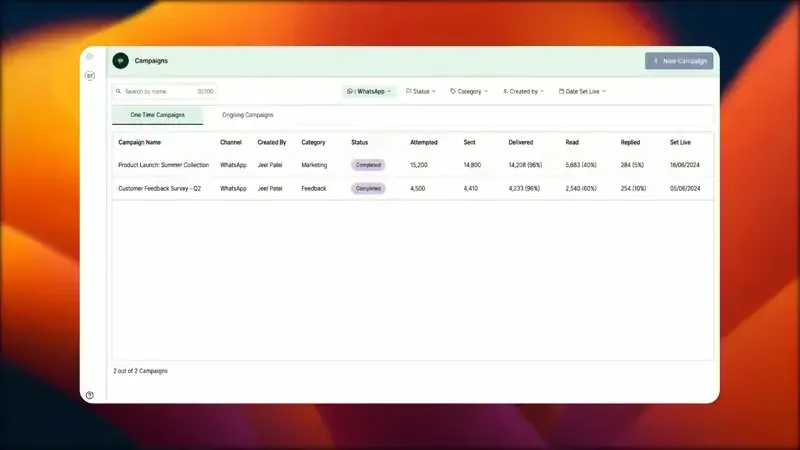
- Automated Broadcasts & Retargeting: Send approved templates to segmented subscriber lists while maintaining a "High" quality tier. See our guide to broadcasting without getting banned.
Frequently Asked Questions (FAQs)
Ready to Send High-Converting WhatsApp Templates?
Launch approved templates, automate broadcasts, and manage customer support on the official WhatsApp Business Platform with GrowOnBot.